
Introduction
In marketing, funnels (or conversion paths) are a sequence of events that your customers must go through in order to convert. Google Analytics allows you to track every step along this path. Today I will show you how to properly configure conversion paths and why they are so valuable.
Table of contentsExpand
Once you have configured them, you will be able to check whether you are achieving your goals – and if not, at which point in the funnel your customers are dropping off. This will help you quickly identify what needs to be improved in order to generate a higher return from your marketing activities.
Analytics is worthless without goals! A fundamental part of any measurement and optimization plan is defining goals. If you do not do this, or if you do it incorrectly, prepare for disaster.
What goals are
Goals are specific strategies that you will use to achieve specific business outcomes. They are essential to the effective operation of a company, serving as a guideline and giving direction to activities. Without goals, there is no good and effective planning, which in turn influences the setting of new goals in the future.
The main advantage of goals is that they are a reliable mechanism for control and evaluation.
Their beauty lies in the fact that they reflect specific strategies. However, the goals you set must be specific, measurable, attractive, realistic, and time-bound.
Today we will focus on the goals you can define for your website using Google Analytics in order to measure the results of your activities, such as:
- selling 100 products next month
- acquiring 1000 new newsletter subscribers within the next year
- increasing website traffic by 50% within 6 months
- increasing sales of product X by 20% within 3 months
Goals must be precise. I often come across goals such as:
- increase sales,
- increase traffic
- grow the mailing list
Such goals are not measurable – they lack a precise point of reference. You will not know whether the plan has been achieved at 100, 120, or 20%. If the marketing director in your company does not understand this, recommend a consultation with me – starting from 650.00 PLN/h.
Why measuring the degree to which a goal is achieved is so important
Defining what you want to achieve, creating a plan for how to achieve it, and measuring whether you are achieving it is a responsible way to manage a business. This is precisely the difference that determines whether your business will succeed or fail.
When goals are configured in Google Analytics, they provide us with very important information necessary to assess the effectiveness of our activities and make decisions regarding strategies planned for the future.
Types of goals:
There are four types of goals that can be configured in Google Analytics, as well as Smart Goals:

1. Destination
Completion of this goal is recorded when a user reaches a defined subpage through the use of a fixed (or virtual) URL. This usually happens after completing an action: reaching a thank-you page after a purchase, a thank-you page after signing up for a newsletter, or perhaps after adding a product to the cart. Before specifying the URL parameters, you must define the match type for the goal: “Equals to,” “Begins with,” or “Regular expression.”
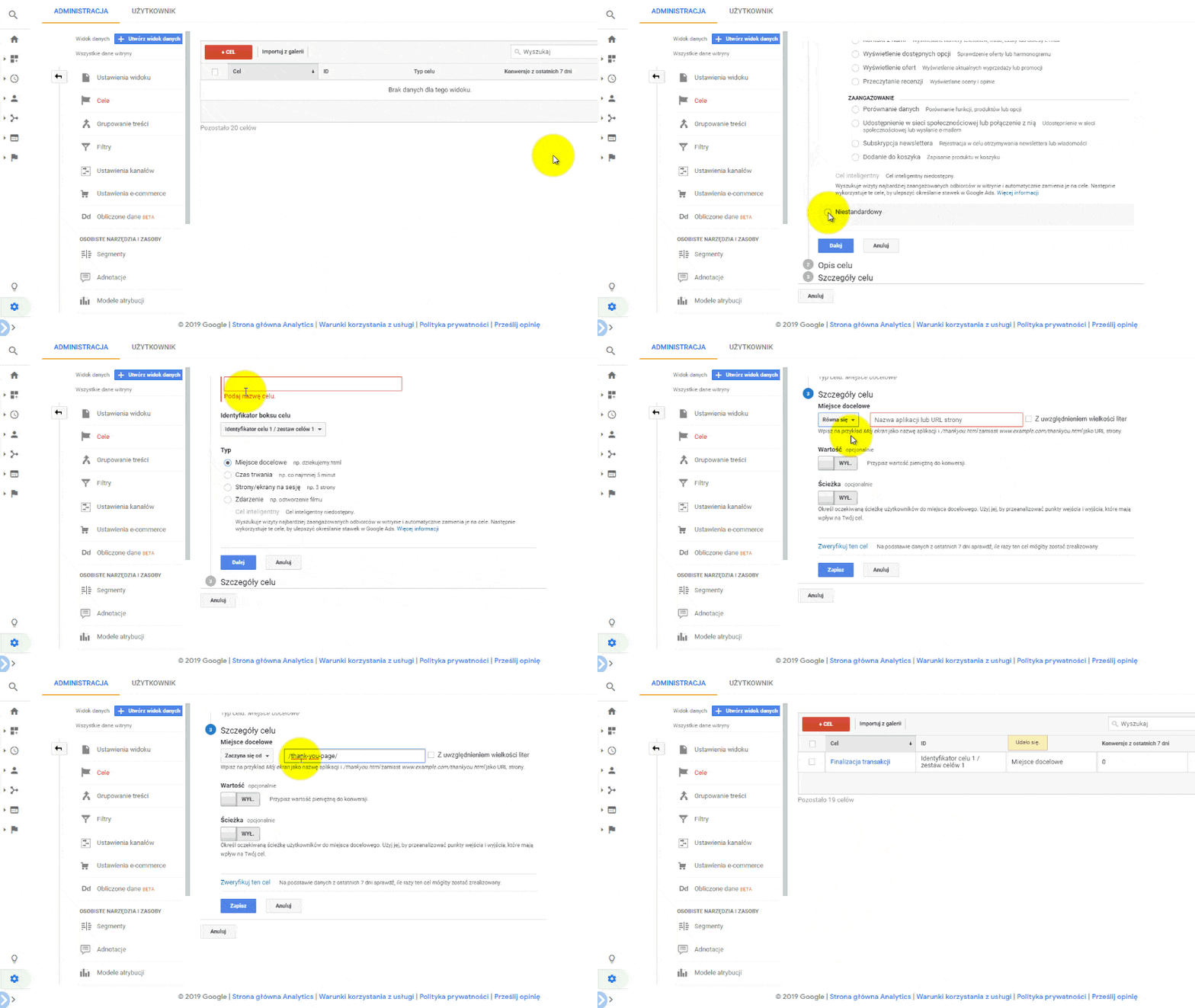
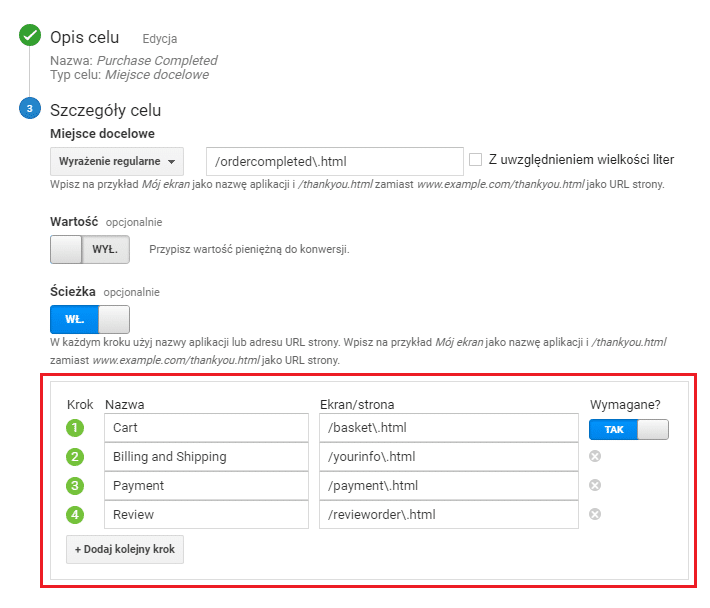
In order for a proper funnel to be created, we need to enable and configure the path in this view. We select the final goal, for example order completion, and configure all the steps the user must go through to reach that goal. An example is shown in the image below.
2. Duration
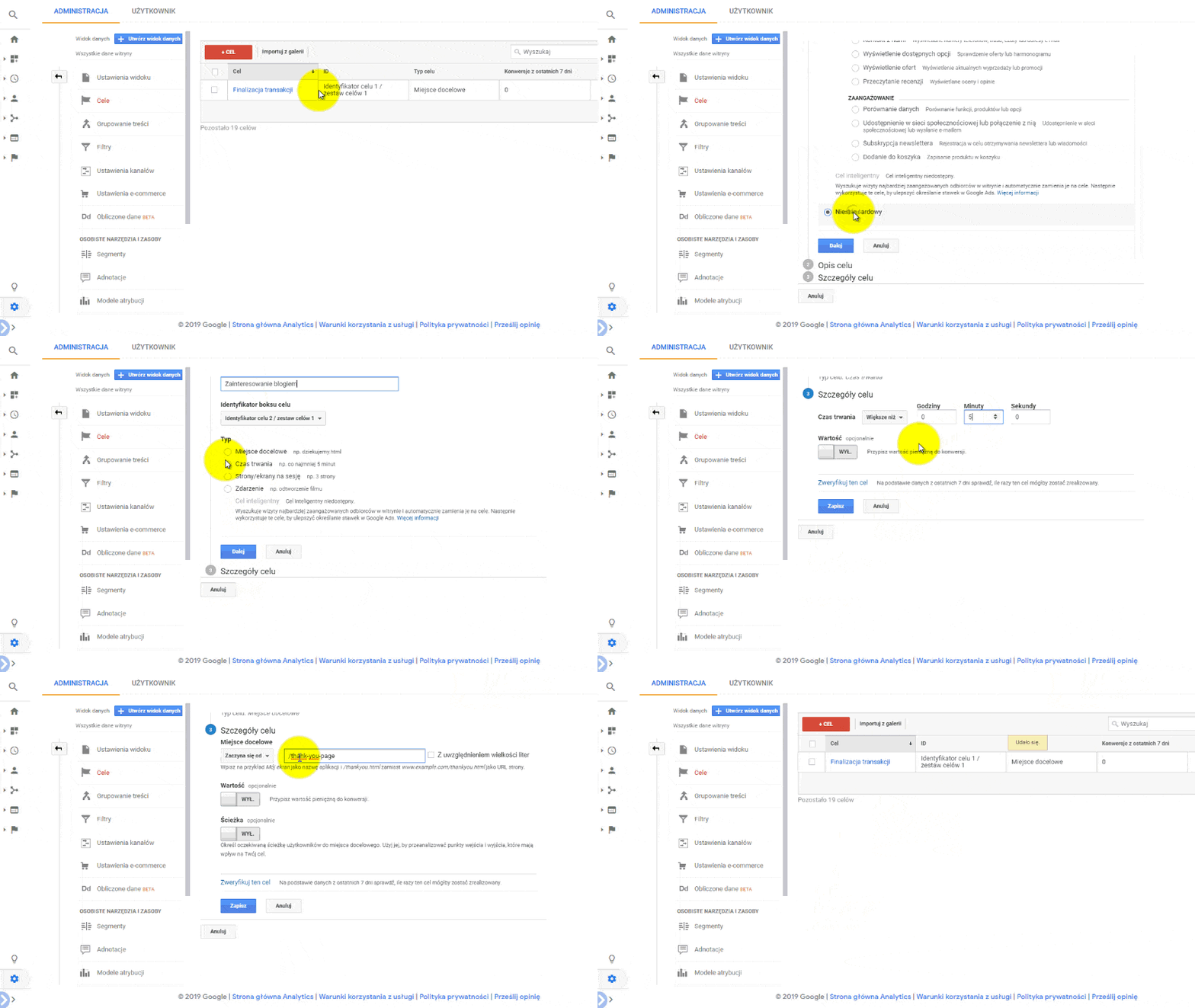

This is a goal that allows you to analyze user engagement on the pages of your website. In my opinion, it is the least useful goal. You need to remember that if a user opens your website in another browser tab and switches to a different tab, the time spent on the page is still being measured. It may turn out that in Google Analytics you find a user who spent 180 minutes on your website, while in reality they were there for 1 second.
3. Pages/screens per session
In my opinion, this goal allows you to measure user engagement on your website better than the previous one. This goal shows how many pages of your website people visit before ending their visit.
Setting duration and pages/session goals is helpful in creating context around the most important goals on your website.
Examples of questions you can answer by setting these additional goals:
- Is there a correlation between the number of pages visited on the website and the conversion rate?
- Do people who convert visit more pages than those who do not?
- How many pages do people visit before converting?
4. Events
Events are helpful for tracking user interactions with a website that Google Analytics usually does not record. For example, by default you cannot track the following interactions in Google Analytics:
- Outbound link clicks
- Email address clicks
- Phone number clicks
- Downloads of materials such as PDF files
- Time spent watching a video
- Social media buttons
Configuring these goals is slightly more complicated. To configure this type of goal, you need to program the element you want to track. If you use the Google Analytics JavaScript code (Universal or Classic), you will need help from a developer to set up these events. However, if you use Google Tag Manager, you can add such events yourself. This will make it possible to send information about the occurrence of an event to Google Analytics.
Here is a video that will help you configure this type of goal using Tag Manager.
5. Smart Goal
Smart Goal: this type of goal was made available at the end of 2015. It automatically counts conversions for the most engaged users on your website. It uses machine learning to analyze user behavior on the website in order to determine whether a conversion should be counted. You must have Google Ads linked to Google Analytics and at least 500 ad clicks for this option to be available.
To activate Smart Goals, there are several prerequisites:
- Your Google Ads and Google Analytics accounts must be linked
- The linked Analytics view (website) must have received 500 clicks from the Google Ads account within the last 30 days
- If the linked account drops below 250 clicks within the last 30 days for the selected view, Smart Goals will be disabled until clicks rise again to 500 or more
- The Analytics view (website) must not receive more than 10 million sessions within 30 days
- In your Google Analytics account, you must enable data sharing with other Google products. See the screenshot below
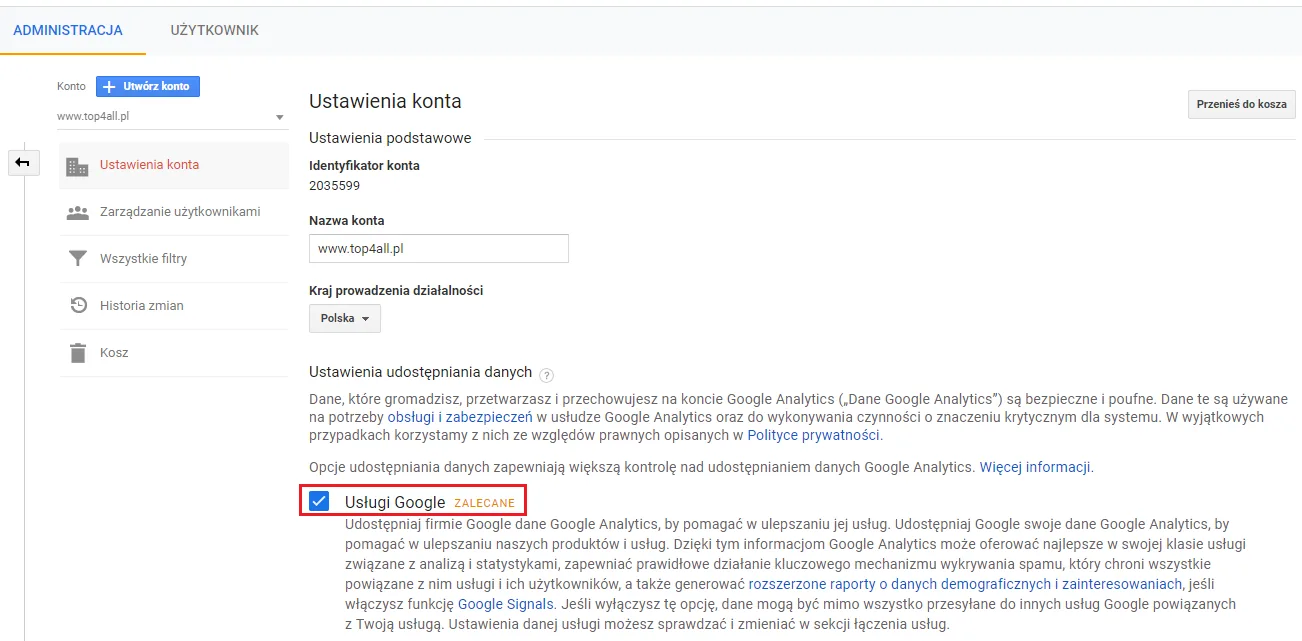
Once they are enabled, the next step is to select the Smart Goal option during the configuration process (detailed above) and save them in the usual way. Next, you need to import these goals into Google Ads.
To do this, you need to log in to your Google Ads account, select the “Tools” tab, and choose “Conversions.” Then, by clicking the blue plus sign, select the last option, Import (importing conversions from another system, including Google Analytics). Select that you want to import data from Google Analytics and click the Next button. You will see a list of goals previously defined in Google Analytics; you can select them and import them into Google Ads.
If you want to use these goals to optimize your Google Ads account in order to improve its performance, you need to remember that these are not user-defined goals, and you are optimizing the account based on what Google Analytics considers most important – the most valuable visits to your website.
Goals configured — what next?
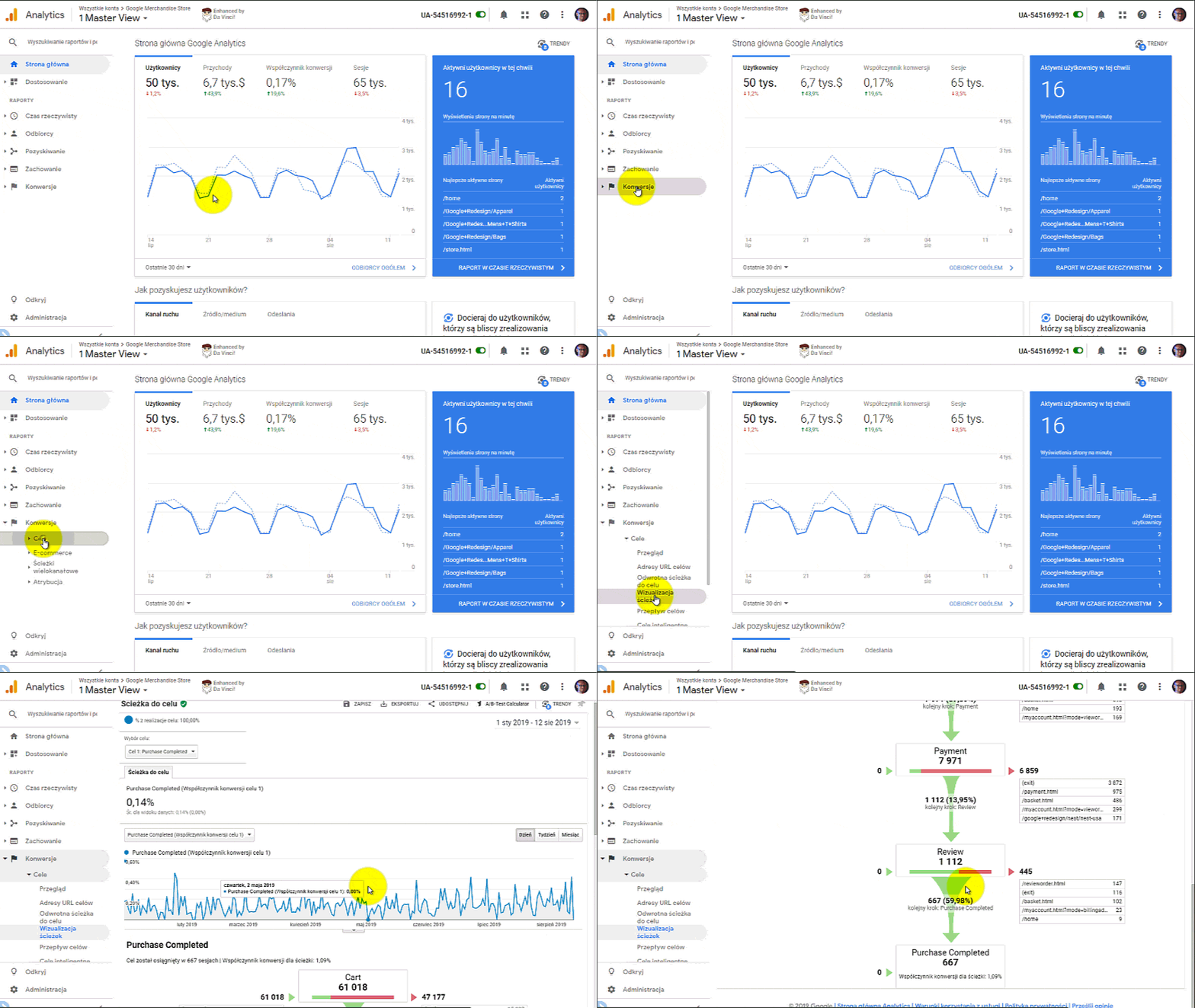
If you have configured your goals correctly, after some time you will be able to view a fantastic funnel. Thanks to it, you will see where your potential customers are dropping off and find out what you should work on to improve the effectiveness of your website.
Differences between a goal conversion and an e-commerce transaction
You are probably wondering why you should waste time configuring goals if you already have the e-commerce module enabled. Let me explain: goals and transactions are counted differently in Google Analytics.
Each single goal conversion in Google Analytics will count each user per session only once. Although you can track several pageviews for the same goal URL by the same user, only one goal completion will be counted. Similarly, a user can trigger the same events multiple times in a session. If a specific event is also designed as a goal, the session will show only one goal conversion per user.
You need to know this
Unfortunately, the likelihood of unintended duplicate transactions is high. Unintended duplicate transactions may take the following forms:
- A user refreshes the purchase confirmation page.
- They visit the purchase confirmation page one or more times until they receive the purchased products
- They close the browser on a smartphone and open it later; the browser automatically reloads the purchase confirmation page
- A user shares a link to the purchase confirmation page, and the person accessing the page through the link opens that page.
- A user emails a link to the purchase confirmation page and opens it again
An unintended duplicate transaction is a serious problem because it includes transactions that in reality never even occurred. It is possible to remove e-commerce transactions from Google Analytics, but I will cover that in the next post.
When analyzing data, you need to remember that every transaction is a conversion, but not all conversions are transactions. If a website has e-commerce configured in Google Analytics, then no value should be assigned to the goal.
What causes this
The difference between these two events is that a goal (conversion) can occur only once during a single visit, while several e-commerce transactions may be reported in the tool multiple times. Imagine that one of your website goals is downloading a PDF file. If you use virtual pageviews for this and configure a goal for this action, then during one visit the goal will be completed once, even if the user downloads the file multiple times. In the case of e-commerce transactions, downloading the file will be recorded in the tool as many times as the user downloaded the file from the website server.
Do goals work retroactively?
Unfortunately, no! Goals do not work retroactively. A goal must be configured first; only afterward will you start seeing data appear in reports. Goals should be configured as early as possible. You need to continuously monitor whether goals are configured correctly and whether they reflect your strategy.
Summary
Configuring goals and visualizing user flow is one of the most effective methods for understanding user behavior on your website. Building it is essential in order to identify problematic pages on the path to purchase and improve them. So get to work!

About the author
Radosław Mentel
Certified Google Partner (Ads & Analytics) with over 17 years of experience. For years, I've taught marketing at SGH and judged the best campaigns in Poland as a semKRK Awards judge.
More about me