
Introduction
I remember it as if it were today: October 2011, when most of the keywords through which users arrived at websites from organic results were hidden under the now-famous (not provided). To solve this problem, Keywords Hero appeared, which I wrote about 2 years ago. Site search is not a very popular topic, yet it is extremely important for business. Most Google Analytics accounts I am given access to do not have internal search tracking configured.
Table of contentsExpand
You would probably very much like to understand the intentions of the people visiting your website. To find out what users were looking for and whether they found it. You can enable this feature in web analytics tools.
Results from the internal search engine can show you what potential customers are looking for during their visit to your website. Based on the words or phrases they enter, you can discover their true intentions.
If you run an online store, by analyzing the queries entered into the search engine, you can check what kind of content is being searched for and what products people are looking for in your store. You can see what words they use and whether the results they received helped them become your customers.
Internal search results can also inspire you and reveal new areas for growth. For example, if a large percentage of website users search for information about delivery or returns, it may be a sign that this information should be more visible. If they are looking for products that you do not have in your offer, perhaps it is worth taking an interest in them?
Interested? Let’s get started!
What the site search report gives you
An in-depth analysis of this report will help you answer the question of what people are looking for. Which phrases they enter most often into the search engine, and whether the product or services they are interested in are included in your offer.
This report is a goldmine of knowledge when it comes to content marketing. For example, if the owner of a sports store finds a query about ski length in relation to height, they already have a great topic for an article on their blog.
It is a tool that allows you to analyze customer needs.
Returning to our sports store. You are looking for a snowboard, a top model from the latest collection. With undisguised excitement and eagerness to buy, you find it; you also want goggles and a helmet. You try to search for the right products, but the search results list is empty. Can you imagine how your “almost” customer behaves in such a situation?
Here are some of the questions you will be able to answer by analyzing internal search results:
- how often the search engine is used
- which pages on your website searches start from
- whether users find what they are looking for
- how users search your website
- which products they search for most often
- how many pages they view after searching
- whether the search results helped them make a purchase
- what the exit rate from search results is
How can this information help you?
- in reconsidering the store’s architecture if users often enter the name of a product that you believe is clearly visible
- in preparing a content marketing strategy
- in introducing new products
- in finding gaps in the offer
How to configure internal search
There are several ways to configure internal search; I will discuss one in detail and point out another option.
Configuration with a search parameter
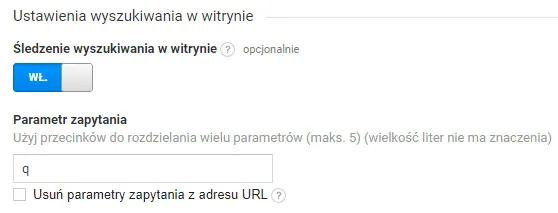
By clicking the Administration menu item in the lower left corner, you go to the view settings in the third column. Then you enable the site search tracking feature.
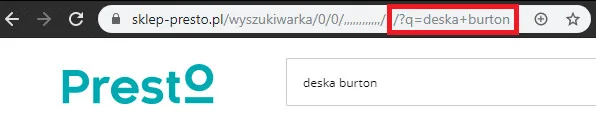
Next, we need to enter the correct query parameter. Go to your website and use the search engine. Now you need to analyze the URL. You will probably see the entered search term in it with the following characters: “?”, “Random letter,” and “=”. The letter before the equals sign = is your website’s query parameter. In my case, it is q.
I am text block. Click edit button to change this text. Lorem ipsum dolor sit amet, consectetur adipiscing elit. Ut elit tellus, luctus nec ullamcorper mattis, pulvinar dapibus leo.
So we enter our parameter q and save the settings in Google Analytics.
You must remember that data will only be collected from the moment the parameter is entered. You will not have access to data from before the configuration. This applies to most features in Google Analytics.
Configuration without a search parameter
Search engines on some websites may generate a URL without the parameter we are interested in. To track this type of search, we need to configure this option in a different way – using filters.
If you need help with this configuration, let me know. I will be happy to help. If there is strong interest, I will expand this article.
How to analyze the four internal search reports in Google Analytics
From now on, data will be recorded, and after some time we will be able to analyze it to obtain information about what our users were looking for on our website and what their intentions were. So let’s move on to the reports.
Report no. 1: Overview
From the menu, we select Behavior ➠ Site Search ➠ Overview.
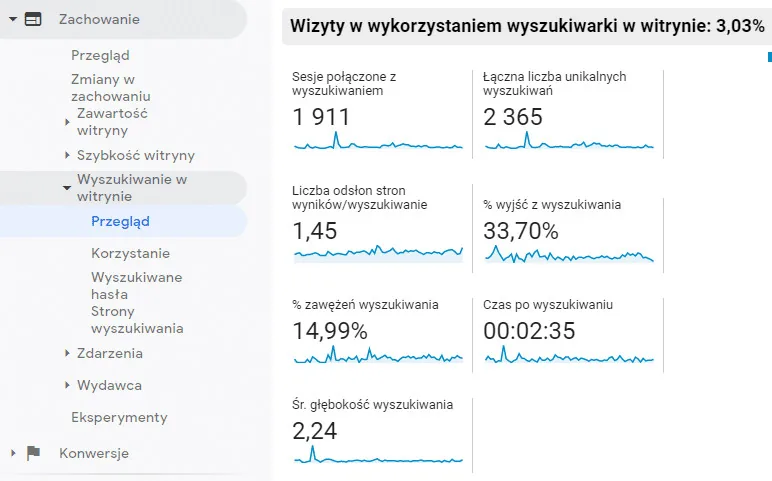
This report contains a list of several statistics related to site search. You will also find a list of the most frequently searched terms in it, which are not shown in my screenshot but will be visible in your report.
From this specific report, you can learn:
- what percentage of visits involved the use of the search engine
- how many unique searches there were
- what percentage of users refined their query
- how much time users spent on the website after using the search engine
- how many subpages they visited on average
- which phrases were searched for most often
- what percentage left the website after viewing the search results
Report no. 2: Usage
We can find this report by selecting Behavior ➠ Site Search ➠ Usage in sequence.
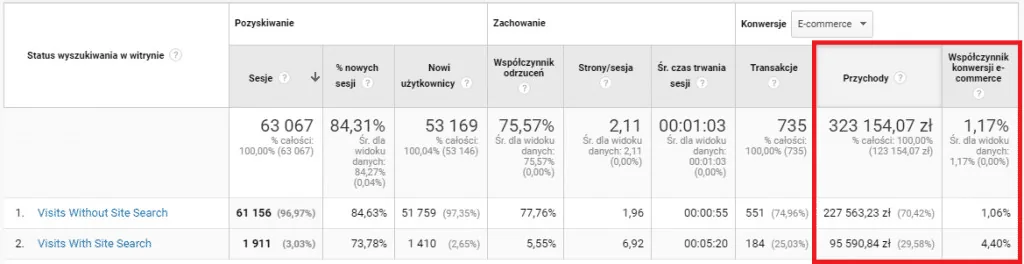
With this report, you can check how effective the search engine mechanism is and whether it helps your potential customers reach the products they are looking for.
In the store I analyzed, the last 2 columns caught my attention. Although relatively few users used the internal search engine, with their share of visits amounting to 3,03%. The percentage of transactions made by them, however, was already 29,58%! The conversion rate, meanwhile, was 400% higher than that of users who did not use the search engine.
The hypothesis I would formulate based on this data is as follows:
There is a problem with information architecture and product visibility in the online store. Users have to use the search engine to reach the products they are looking for. I would therefore analyze the most frequently entered terms vs. the best-selling products and check whether my hypothesis is accurate.
Report no. 3: Search terms
We can find this report by selecting Behavior ➠ Site Search ➠ Search Terms in sequence.
This report shows the most frequently searched terms along with engagement metrics. Although the top ten may not particularly surprise you, I recommend exporting the data from this report to Excel and spending some time analyzing and grouping the searched terms.
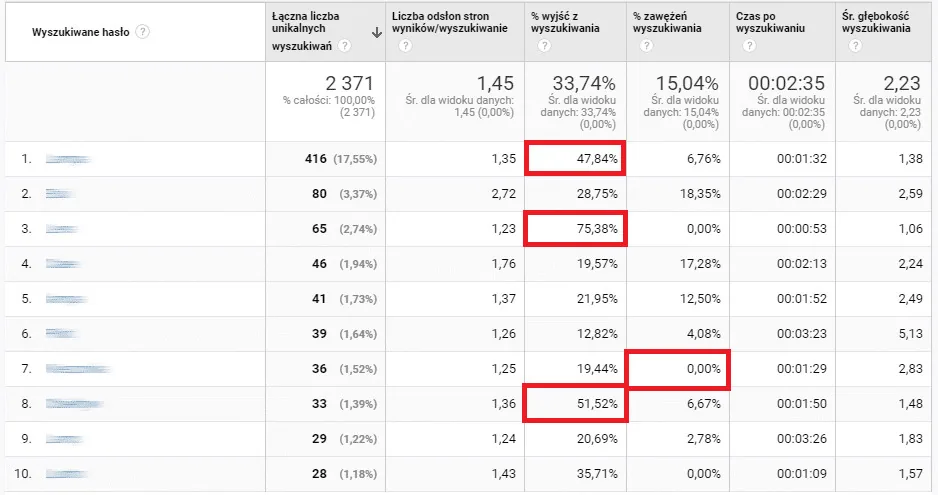
Pay attention to whether some terms have an excessively high exit rate and do not require search refinement. Check whether the terms entered by users are included in your content marketing strategy.
In this view, you should add the secondary dimension source/medium to analyze user behavior and the channels through which they reach the website even more precisely. If you want to learn more about traffic channels, I invite you to read my article titled How to understand and analyze traffic channels in Google Analytics
Remember, you need to look at user behavior very broadly; it usually results from context. Check what advertising activities you ran during the analyzed period of time. Did something happen that caused customers to become more interested in the product, e.g. an advertising campaign by the manufacturer whose products you offer? You need to take this into account.
Report no. 4: Search pages
You can access this report by selecting Behavior ➠ Search ➠ Search Pages in sequence.
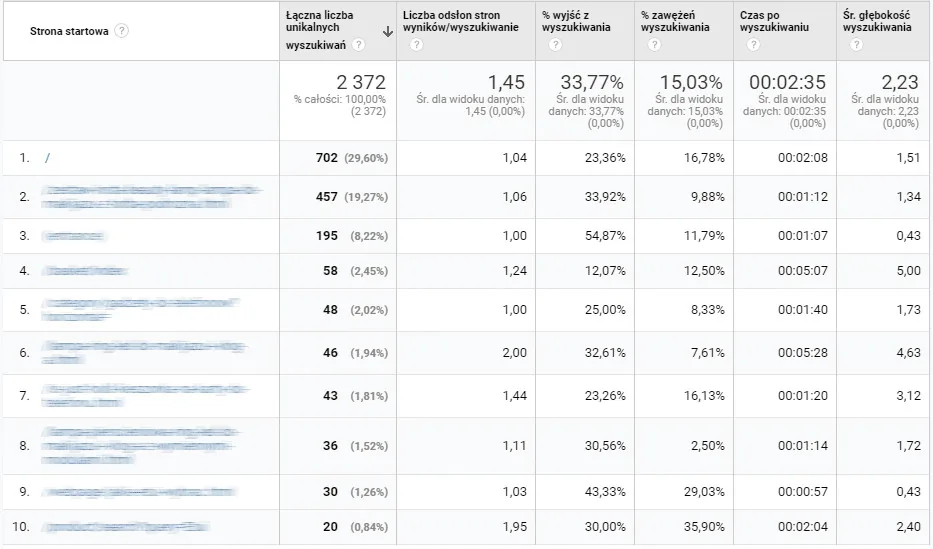
the user who launched the search engine was on. This may mean, for example, that a user arrived on your page and did not find what they expected there.
By clicking any URL, you can check which terms were searched for by users on each page. Analyze this carefully and try to solve the problems users encountered.
I am text block. Click edit button to change this text. Lorem ipsum dolor sit amet, consectetur adipiscing elit. Ut elit tellus, luctus nec ullamcorper mattis, pulvinar dapibus leo.
Possibilities you did not know about
You have already received quite a lot of information about internal search and a few tips on how to analyze it and what to do next. This is not the end of the good news. The most brilliant way to use this knowledge is as follows.
Building an audience list based on search terms
Thanks to segmentation, you can build a list of users who enter specific terms into the search engine. Avinash Kaushik’s saying “Segment or die” fits very well here because it opens up a range of possibilities.
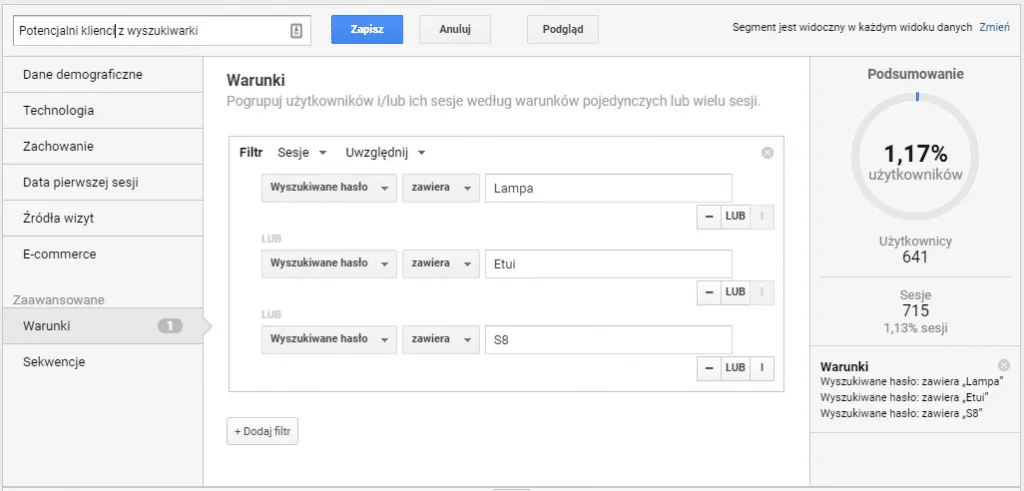
You can turn the created segment into an audience group and use it in a Google Ads campaign!
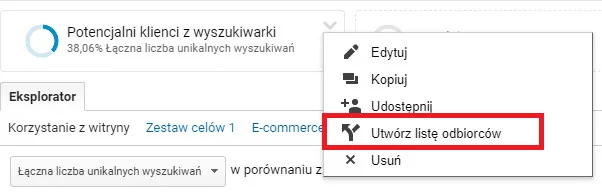
Imagine that after a week your potential customer is still looking for a Burton snowboard and enters the phrase “snowboard burton 2020” in Google, and you show them an ad.
Hi, you recently searched our store for a Burton snowboard, the Process Flying V 155 model. It is now in our offer. With the code XYZ, you get a 5% discount.
Summary
Although tracking site search results requires additional Google Analytics configuration, it is absolutely necessary to devote the time and effort to doing it.
By implementing tracking, you will receive valuable information about users and their intentions while visiting your website. You will identify gaps on the website and obtain information useful for preparing a content marketing strategy.
By using the knowledge gathered from the internal search engine, you can encourage users to return to your website and build a stronger business.

About the author
Radosław Mentel
Certified Google Partner (Ads & Analytics) with over 17 years of experience. For years, I've taught marketing at SGH and judged the best campaigns in Poland as a semKRK Awards judge.
More about me