
I decided to create a list of extensions that are very useful or even essential for people working in web analytics. If you do not know them yet or have not used them for a long time, they are definitely worth revisiting.
Table of contentsExpand
# Google Tag Assistant
With this Chrome extension, you can check whether tracking scripts have been installed correctly on your websites.
You can verify:
- Google Tag Manager
- Google Analytics (ga.js and dc.js)
- AdWords – conversion code
- AdWords – remarketing
- DoubleClick Floodlight
Interestingly, with this extension added to your browser, you can check the implementation of these codes on any website, including your competitors’ sites—you never know, something might inspire you.
Recently, a problem appeared with Google Tag Assistant which, by the time this post was published, had not been resolved. GTA does not recognize the identifiers of Google Tag Manager containers where XXXXXX in GTM-XXXXXXX is more than 6 characters. The latest codes are already 7 characters long. You can ignore this error.

# Google Analytics Debugger
As I wrote previously, many people think that simply installing Google Analytics is easy. Even if Google confirms that the code has been detected and installed, errors may occur in how it works, which can cause problems and distort the data used for analysis – misleading us. The conclusions we draw from such data will, of course, be incorrect. Another issue is spam traffic on our website, but I will write about how to eliminate it another time.
The Google Analytics Debugger extension lets you check whether any errors appear in the tracking code. It provides very detailed information. With it, you can debug the Google Analytics JavaScript code, looking closely at how it works, what is sent and recorded in GA. If you see in GA that transactions are being duplicated, check whether they are perhaps being sent twice.
After installing the extension and enabling it, click CTRL+Shift+J; a console opens where we can monitor the JS code.

# Page Analytics
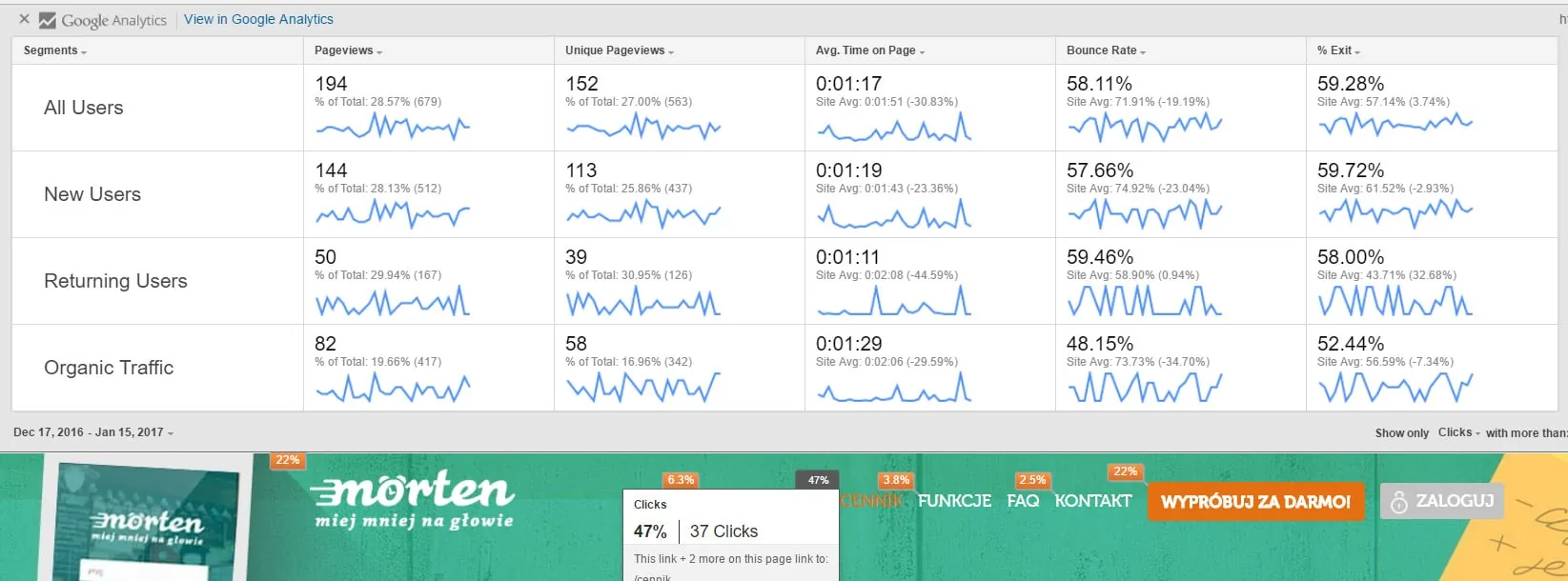
You probably visit your own websites much more often than you look into Google Analytics. This extension is exactly for you. You can view the statistics of a page that you have connected to your GA. While on the page, you can turn it on and see basic information available in GA. By using segmentation and then moving on to GA, we will see the view we configured using this extension.
- Segmentation as Avinash Kaushik put it: “Segment or die”
- New and returning users
- Paid traffic
- Organic traffic
- Search engine traffic
- Direct traffic
- Referral traffic
- Session with a conversion
- Session with a transaction
- Desktop / mobile traffic
- Mobile device traffic: smartphone / tablet
- Android / iOS traffic
- Time range you can set any period and compare it, for example, month over month or year over year. In analytics, the trend is very important; there should always be some point of reference against which we want to draw conclusions.
- Checks in Google Analytics usually, when something in the data we notice catches our interest, we can go directly from the extension to the data view we configured in it, including the date range and segments.
- Type of visualization – these are precisely the orange percentages you can see in the screenshot below. Thanks to them, you can see which elements of your website are clicked most often by users and are the most popular.
# Table Booster
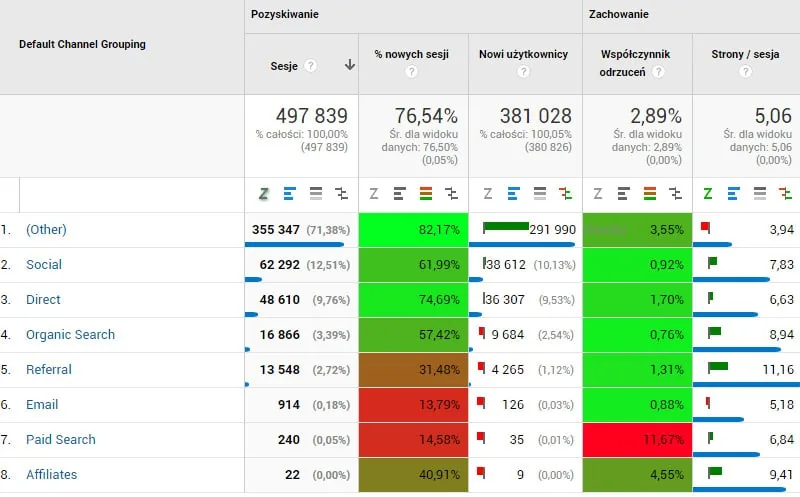
Was analyzing data in Google Analytics exhausting, and after 30 minutes did everything start to blur before your eyes? One solution was to export the data to Excel, where, as we all know, we can color-code things however we like.
However, it is worth launching Table Booster and using it directly in Google Analytics. From what I remember, Maciek Lewiński once counted how many shades of gray there are in GA; I think he came up with 11 or 12. Thanks to this extension, you can add some color to GA, and analyzing data and picking out important relationships will become much easier.

About the author
Radosław Mentel
Certified Google Partner (Ads & Analytics) with over 17 years of experience. For years, I've taught marketing at SGH and judged the best campaigns in Poland as a semKRK Awards judge.
More about me